Printerserver und Server 2012 R2 und 2016

Januar 16th, 2018 by Jan Gabriel Keine Kommentare »


Imagine this scenario: You have 2 servers, 1 is a Domain Controller and File & Print Server (Server01), the other is a Remote Desktop Server for all users to log into (Server02). Both are using Windows Server 2012 Standard R2.

You have deployed printers through Print Management from Server01 to the OU of Server02 with a Loopback Policy set to Merge or Replace.

Your users log on and off of the server and pull through their printers each time. Users complain that:

  1. They cannot print
  2. They cannot set Default Printers (No Green Tick Appears)
  3. There are multiple instances of the same printer

After spending days, and I mean days, on the phone to Microsoft we managed to make a breakthrough.

The reason that this seems to fail is because:

  1. When users are logging off or even *disconnecting* (clicking the X in RDP) and logging back on regularly, it is constantly pulling through and removing the printers, making printer corruption likely.
  2. Also, when „Client Side Rendering“ is enabled, it will render all print jobs on the Terminal Server which can increase the overhead of printing and likelihood of a print job failing – requiring spooler restarts and subsequently, corrupting the printer.

To resolve this, I have found that the following steps have worked for me:

(NOTE: You will need to organise around 1 hour’s downtime)

  1. Log all users off of the Terminal Server and ensure they are informed not to log back in (or disable TS and use Console view)
  2. Stop the Printer Spooler on both Server01 and Server02
  3. Delete all items „C:\Windows\System32\spool\Printers“ on Server01 and Server02
  4. On Server01, go through all printers and untick „Render print jobs on client computers“ under the Sharing tab
  5. On Server02, open GPEDIT.msc and navigate to:
    1. Computer Configuration > Administrative Templates > Printers > „Always render print jobs on the server“
    2. Set this to „Enabled“ – this will ensure all print jobs get sent to Server01 and reduce the overhead on Server02
  6. On Server02, open Regedit and rename the following key to _old
    1. HKEY_LOCAL_MACHINE\SOFTWARE\Microsoft\Windows NT\CurrentVersion\Print\Providers\Client Side Rendering Print Provider
  7. Start the Print Spooler on Server01 and Server02
  8. Open Regedit on Server02 and a new key should have been created for „Client Side Rendering Print Provider“
  9. Add the following REG_DWORD Value to HKEY_LOCAL_MACHINE\SOFTWARE\Microsoft\Windows NT\CurrentVersion\Print\Providers\Client Side Rendering Print Provider
    1. RemovePrintersAtLogoff
      1. VALUE: 0
    2. This will basically prevent the printers being removed each time the users log off/disconnect which will subsequently prevent the corruptions.
  10. Log on a user to test

We have now carried out this fix on two Customers with the same set up – 2 x 2012 Servers, one DC and one RDP and so far, after three weeks, the problems have not returned.

HUGE sigh of relief.

Originalbeitrag hier: https://social.technet.microsoft.com/Forums/en-US/ea51c54b-2734-4987-9f4a-a79f755c8153/windows-2012-r2-printers-showing-twice-and-unable-to-set-default-printer?forum=winserverTS
 

Update ESXi über Console

Juli 13th, 2017 by Jan Gabriel Keine Kommentare »

Firewall konfigurieren:
esxcli network firewall ruleset set -e true -r httpClient

Image Profile anzeigen:
esxcli software sources profile list -d https://hostupdate.vmware.com/software/VUM/PRODUCTION/main/vmw-depot-index.xml

Letztes Update einspielen:
esxcli software profile update -d https://hostupdate.vmware.com/software/VUM/PRODUCTION/main/vmw-depot-index.xml -p ESXi-6.5.0-20171204001-standard

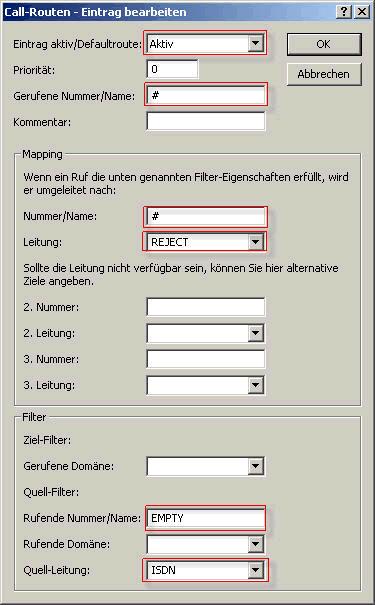
LANCOM Rufnummernsperre

April 11th, 2017 by Jan Gabriel Keine Kommentare »

EMPTY wären Anrufer mit unterdrückter Rufnummer, ansonsten die enstprechende Rufnummer eintragen.

WLAN Kennwörter in Windows auslesen

März 31st, 2017 by Jan Gabriel Keine Kommentare »

In der Kommandozeile folgendes eingeben:
netsh wlan show profiles NAME key=clear | findstr Schlüsselinhalt

Um alle Netze anzuzeigen:
netsh wlan show profiles

Per Powshellfunktion dann so:

function Get-WifiProfiles {
$tmpFolder = Join-Path $env:temp ([Guid]::NewGuid().ToString().Replace(‚-‚,“))
mkdir $tmpFolder | Out-Null

netsh wlan export profile key=clear folder=$tmpFolder | Out-Null

gci $tmpFolder\*.xml | % {
$data = [xml] (gc $_)
New-Object PSObject -Property @{
Name = $data.WLANProfile.name
SSID = $data.WLANProfile.SSIDConfig.SSID.name
ConnType = $data.WLANProfile.connectionType
ConnMode = $data.WLANProfile.connectionMode
AuthType = $data.WLANProfile.MSM.security.authEncryption.authentication
Encryption = $data.WLANProfile.MSM.security.authEncryption.encryption
KeyType = $data.WLANProfile.MSM.security.sharedKey.keyType
Key = $data.WLANProfile.MSM.security.sharedKey.keyMaterial
}
}

#Clean Up
ri -Force -Recurse -Path $tmpFolder
}

VMware und SAS Controller mit Autoloader/Tapelaufwerk

März 30th, 2017 by Jan Gabriel Keine Kommentare »

Auf der Console foglendes aktivieren, damit VMware auch mehr als nur Storage am Controller erkennt:

esxcli storage nmp satp rule add –satp=VMW_SATP_LOCAL –driver=“mpt2sas“


*mpt2sas ist der Treiber der mit esxcfg-scsidevs -a herausgefunden werden kann.

Q: Can I change the port that Remote Desktop Gateway uses?

Januar 9th, 2017 by Jan Gabriel Keine Kommentare »

A: By default, the Remote Desktop (RD) Gateway component that encapsulates RDP in HTTPS packets listens on port 443 (for TCP) and port 3391 (for UDP). You can use the RD Gateway Manager utility to change this as follows:

  1. Right-click the RD Gateway server name in the navigation pane and select Properties.
  2. Select the Transport Settings tab.
  3. Modify the HTTP and/or UDP port number. Set the custom port value to the same port if you change them, because there’s no way to do so in the client.
  4. Specify different custom ports for UDP versus TCP, then click OK.

Note that two firewall exceptions are enabled by default; however, they use the default ports, so you’ll need to add your own firewall exceptions for TCP and UDP for the custom port you selected.

When you connect from a client, you need to add the custom port to the end of the gateway server name, preceded by a colon (:); for example, mygateway.domain.com:9999. Note that this is only an RDP client that supports RDP 8.0 or later.

If you’re using RemoteApp, you need to manually update the gateway in the RDP file with the correct port because you can’t change it via Server Manager to specify a custom port for the gateway. You can modify the port used for the gateway by connecting to the Remote Desktop Session Host and navigating to HKEY_LOCAL_MACHINE\SOFTWARE\Microsoft\Windows NT\CurrentVersion\Terminal Server\CentralPublishedResources\PublishedFarms\<farm>\DeploymentSettings, then editing the DeploymentRDPSettings value to add the port to the gatewayhostname:s:mygateway.com:9999 part of the string. Note that you must set this before you publish any applications. A nicer way is to use PowerShell:

Set-RDSessionCollectionConfiguration –CollectionName „Your Collection“ -CustomRdpProperty „gatewayhostname:s:<GATEWAY.FQDN>:<Port, e.g. 9999>“ -ConnectionBroker <Your Connection Broker>

FAN Speed Supermicro

November 1st, 2016 by Jan Gabriel Keine Kommentare »

FAN1:

ipmitool -I lan -U ADMIN -H 192.168.178.64 raw 0x30 0x70 0x66 0x01 0x00 0x05

FAN2:

ipmitool -I lan -U ADMIN -H 192.168.178.64 raw 0x30 0x70 0x66 0x01 0x01 0x05

etc…

lokale Gruppenrichtlinien zurücksetzen

Oktober 27th, 2016 by Jan Gabriel Keine Kommentare »

cmd mit Adminrechten:

secedit /configure /cfg %windir%\inf\defltbase.inf /db defltbase.sdb /verbose

Replikationsstatus DFS überprüfen

Oktober 13th, 2016 by Jan Gabriel Keine Kommentare »

Kommandozeile:

dfsrdiaf replicationstate

Import von Kalender in Outlook erzeugt „kopieren:“

Oktober 9th, 2016 by Jan Gabriel Keine Kommentare »

Sub RemoveCopy()
Dim myolApp As Outlook.Application
Dim calendar As MAPIFolder
Dim aItem As Object

Set myolApp = CreateObject(„Outlook.Application“)
Set calendar = myolApp.ActiveExplorer.CurrentFolder

Dim iItemsUpdated As Integer
Dim strTemp As String

iItemsUpdated = 0
For Each aItem In calendar.Items
If Mid(aItem.Subject, 1, 10) = „Kopieren: “ Then
strTemp = Mid(aItem.Subject, 11, Len(aItem.Subject) – 10)
aItem.Subject = strTemp
iItemsUpdated = iItemsUpdated + 1
End If
aItem.Save
Next aItem

MsgBox iItemsUpdated & “ of “ & calendar.Items.Count & “ Meetings Updated“

End Sub